Configure Tax Classes to be Exempted in Rate Plans, Packages, and Guest Profiles
Stay is enhanced to allow users to configure the tax classes to be exempted in rate plans, packages, and guest profiles. Previously, users could select tax-exempted classes only for groups and A/R accounts.
Feature Setting
The following new feature setting must be enabled to allow users to select the tax classes to be exempted in rate plans, packages, and guest profiles:
-
Name: Guest Profile Tax Exempt
-
Comments: License is not required
Configure Tax Exemptions for Rate Plans and Packages
When the Guest Profile Tax Exempt feature setting is enabled, a new field, Tax Exempt, is displayed in the Details section of the selected rate plans and packages. By default, this field displays the value No as a hyperlink.
Perform the following steps to configure the tax exemption options for rate plans and packages:
Navigate to the Details section of the selected rate plans and packages.
Navigate to the Tax Exempt field and click the hyperlink, No, displayed next to this field. The Tax Exempt Settings pop-up screen appears.
Refer to the following table and fill in the fields:
|
Field |
Description |
|---|---|
|
Tax ID |
Enter the tax ID. This field supports alphanumeric characters. Users must configure an ID in this field for the Tax Exemption field to be displayed. |
|
Tax Exemption |
|
|
Require Eligible Guest Profile |
This is a non-mandatory flag that supports the following functionalities:
|
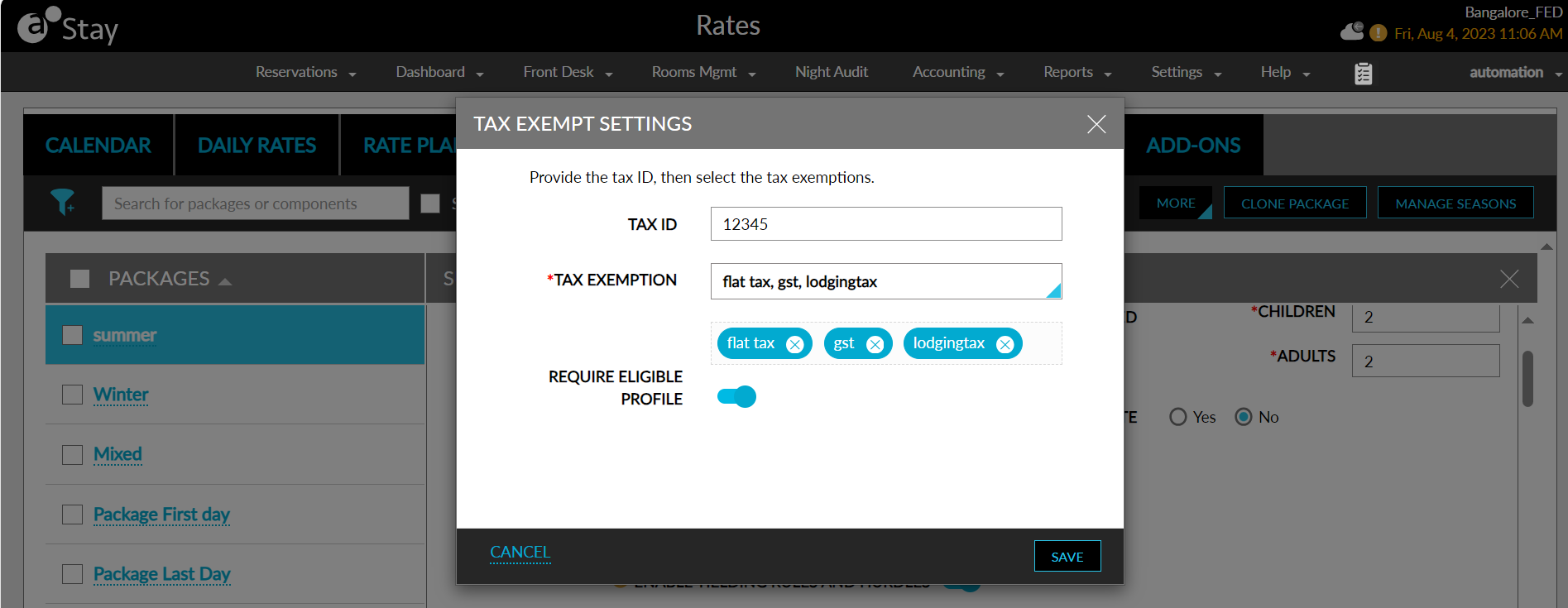
Click Save. The value of the Tax Exempt field is modified to Yes and the selected tax classes are displayed in a box below the field. The tax classes displayed inside the box are greyed out and cannot be edited.
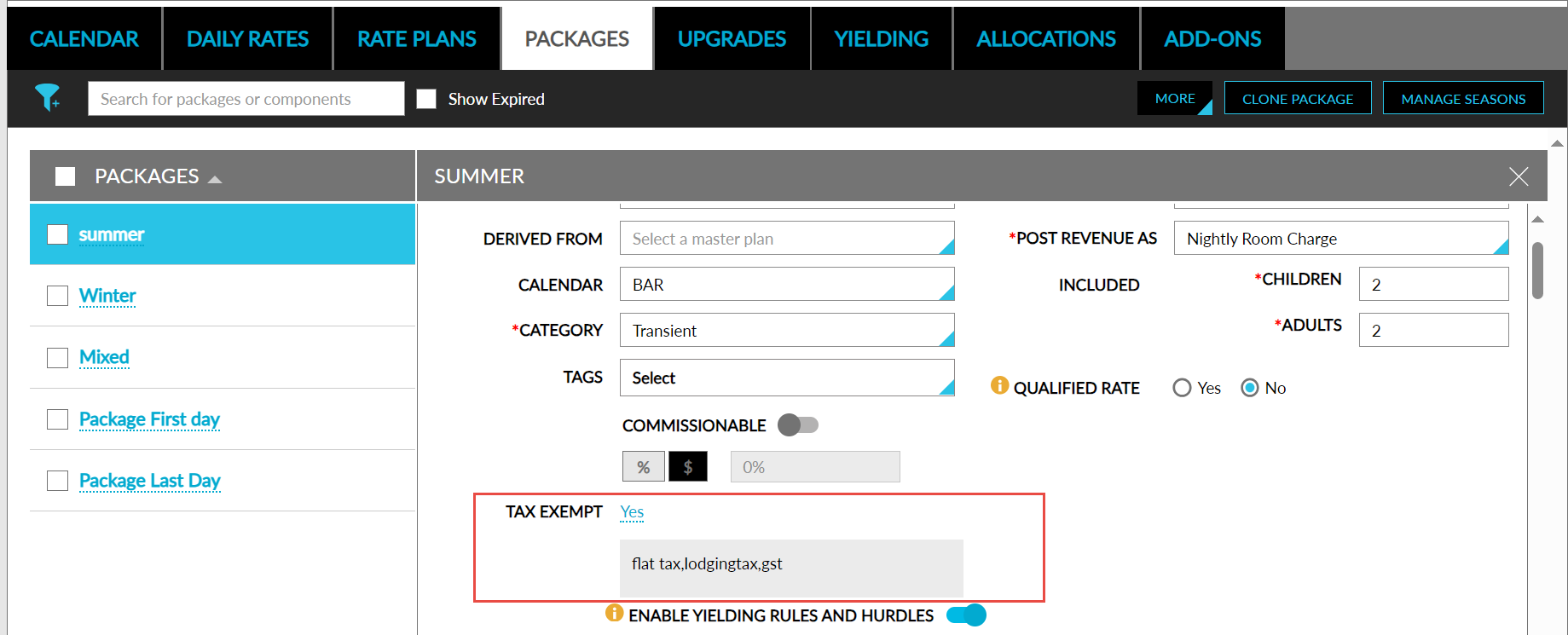
Users can also configure the tax exemption options for rate plans and packages in the following screens:
-
Bulk Edit Package
-
Bulk Edit Rate Plan
-
Rate plan ➜ Clone Rate Plan
-
Package ➜ Clone Package
Configure Tax Exemptions for Guest Profiles
When the Guest Profile Tax Exempt feature setting is enabled, a new field, Tax Exempt, is displayed in the Personal Details section of the selected guest profile. By default, this field displays the value No as a hyperlink.
Perform the following steps to configure the tax exemption options for guest profiles:
Navigate to the Personal Details section of the selected guest profile.
Navigate to the Tax Exempt field and click the hyperlink, No, displayed next to this field. The Tax Exempt Settings pop-up screen appears.
Refer to the following table and fill in the fields:
|
Field |
Description |
|---|---|
|
Tax ID |
Enter the tax ID. This field supports alphanumeric characters. |
|
Tax Exemption |
|
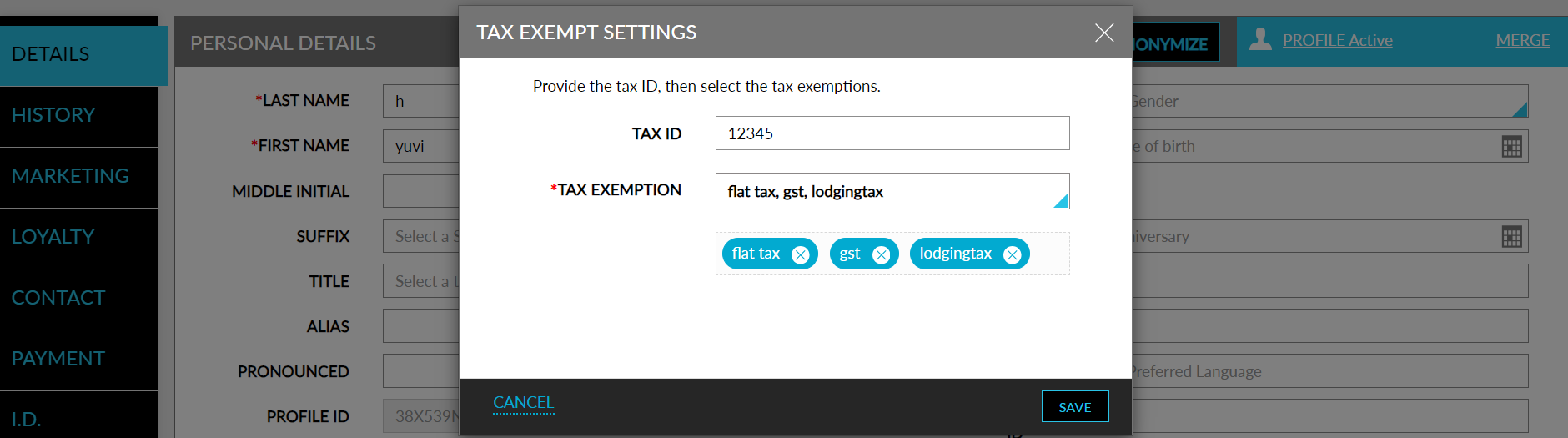
Click Save. The value of the Tax Exempt field changes to Yes and the selected tax classes are displayed in a box below the field. The tax classes displayed inside the box are greyed out and cannot be edited.
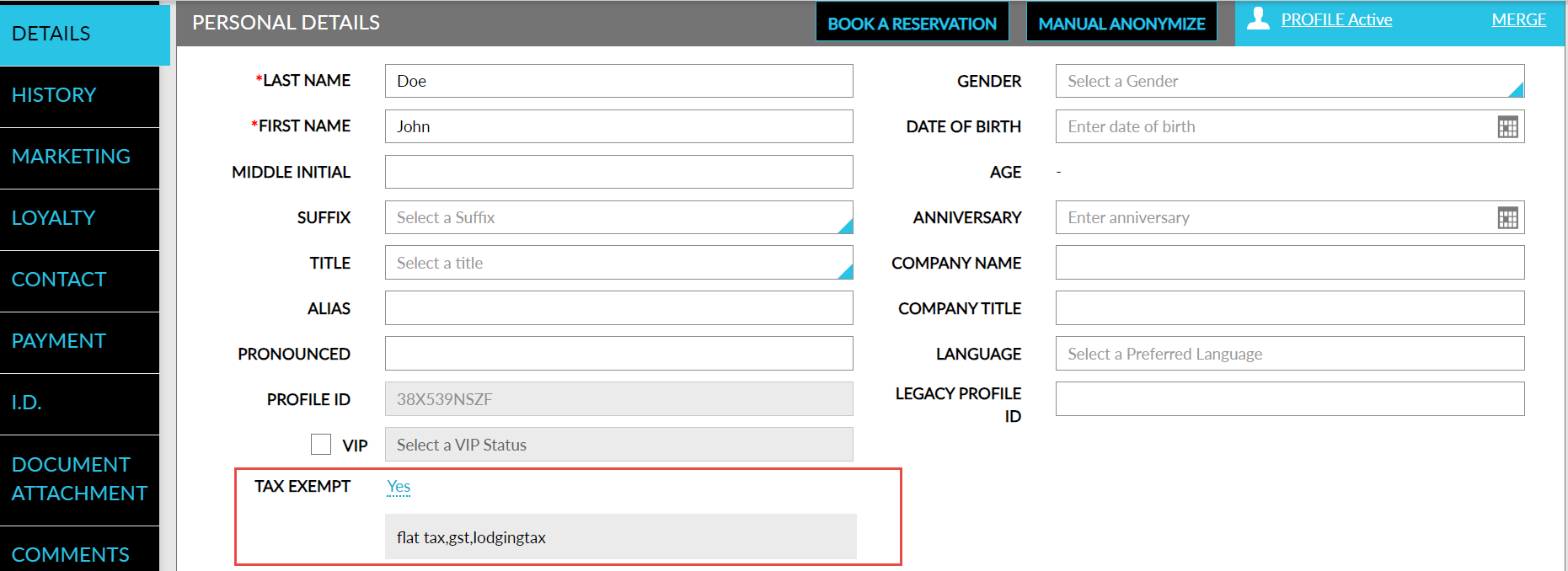
Users can also modify the tax classes selected for exemption in the rate plans, packages, and guest profiles. The modifications are only applicable for future reservations created using the rate plan/package and guest profiles and not to existing reservations.
Creating Reservations Using Tax-Exempted Rate Plans, Packages, and Guest Profiles
Users must enable the Show only tax exempt rates/package checkbox in the Book a Reservation screen to filter rate plans and packages that have the Tax Exempt field set to Yes. When users select a tax-exempted rate plan or package, the following message is displayed in the Book a Reservation screen:
-
The selected rate plan has tax exemption status.
-
The selected package has tax exemption status.
When both tax-exempt rate plan and package are selected, the message, The selected rate plan/package has tax exemption status, is displayed. When the selected rate plan/package has the Require Eligible Guest Profile flag enabled, users must select a guest profile with the Tax Exempt field set to Yes to create the reservation. If users do not select a tax-exempted guest profile, the message, The selected rate plan/package requires an eligible profile for tax exemption, is displayed in the Book Reservation screen and users cannot complete the booking process.
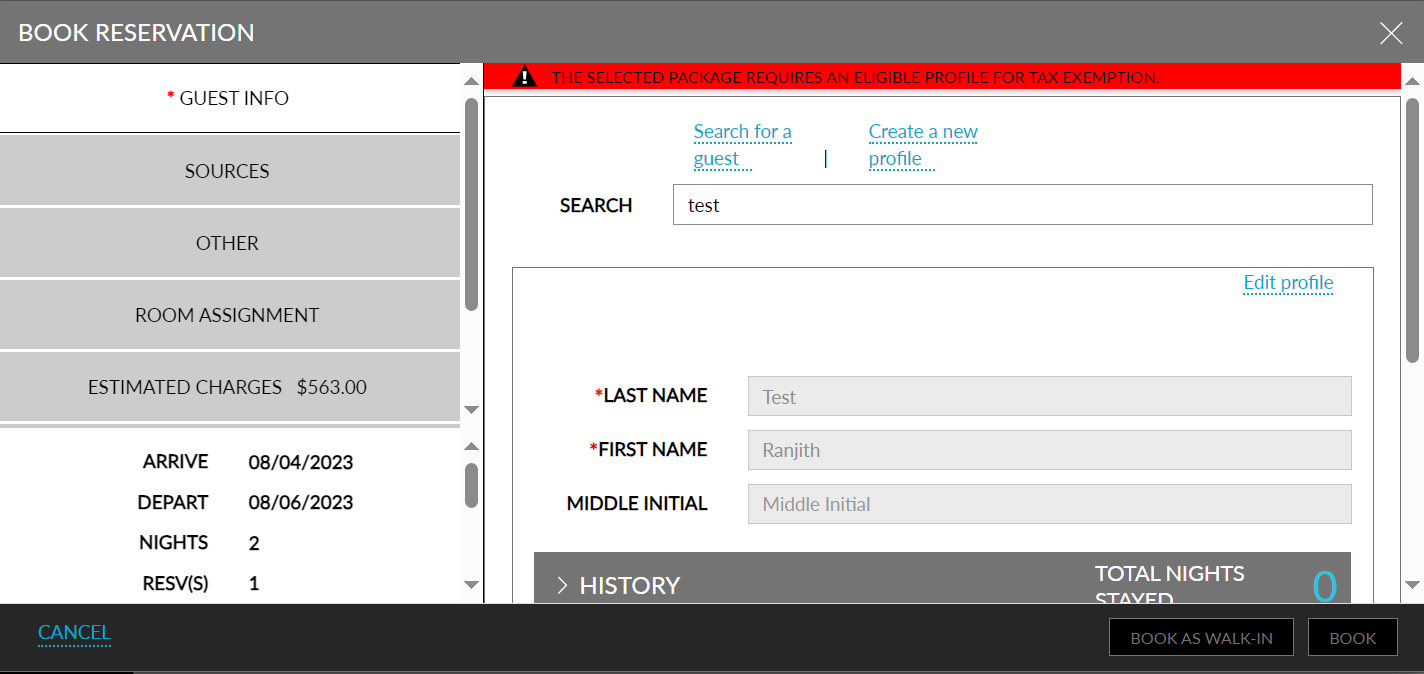
This is also applicable when users create a new guest profile in the Book Reservation screen. Users must create a new guest profile with the Tax Exempt field set to Yes to book reservations successfully.
When users select a tax-exempted profile and proceed to create the reservation, the Tax Exempt Alert pop-up screen appears that informs users that the selected guest profile is tax-exempted.
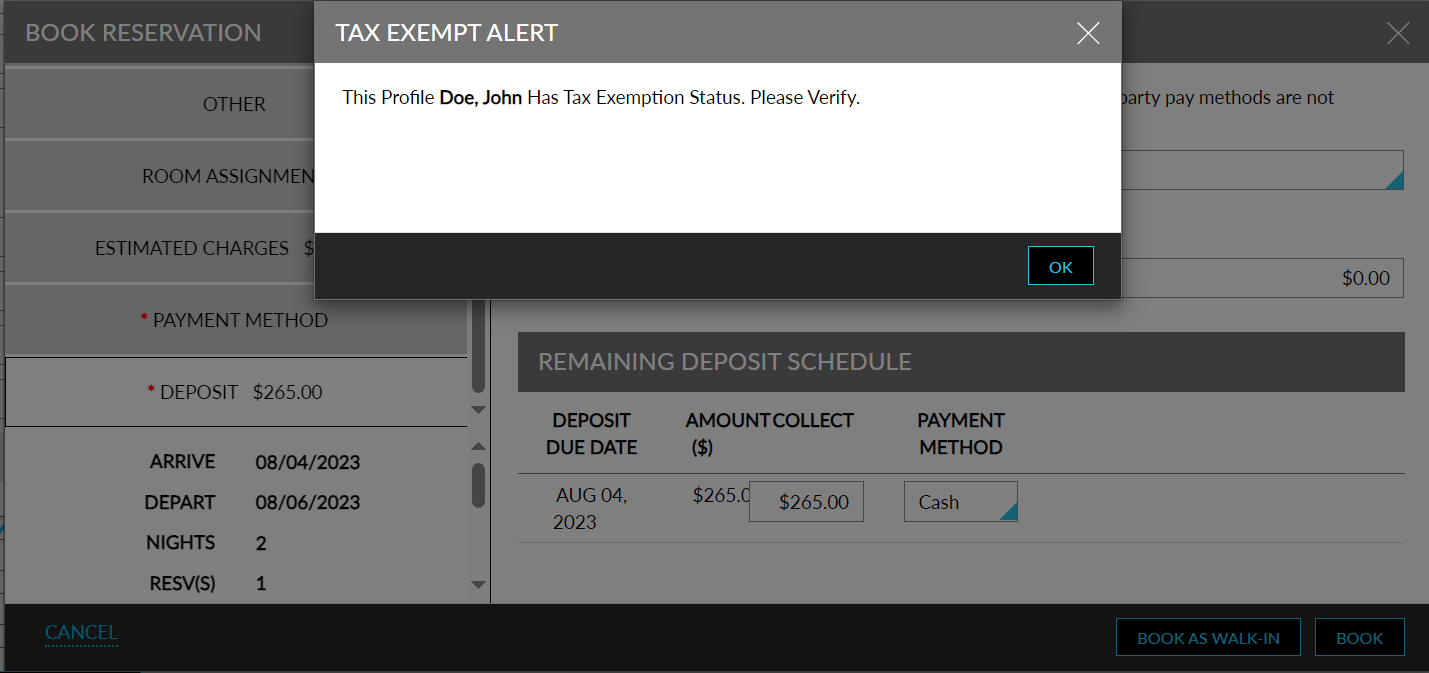
When users click Ok, the reservation will be created successfully. The Tax Exempt Alert pop-up screen also appears when users check in the reservation. When users click the Tax Exempt value in the Estimated Charges section of the reservation, the Tax Exempt Settings pop-up screen appears that displays the tax classes that are selected to be exempted. Users can modify the selected tax classes if required.
When users choose to associate a reservation created using a tax-exempted rate plan/package to a different guest profile, only a tax-exempted guest profile can be associated with the reservation.
Modifying Reservations
When modifying reservations, users must select the Show only tax exempt rates/package checkbox in the Modify Stay screen to filter rate plans and packages that have the Tax Exempt field set to Yes. When users select a tax-exempted rate plan or package, the following message is displayed:
-
The selected rate plan has tax exemption status.
-
The selected package has tax exemption status.
When both tax-exempted rate plan and package, are selected, the message, The selected rate plan/package has tax exemption status, is displayed. When the selected rate plan/package has the Require Eligible Guest Profile flag enabled, users must select a guest profile with the Tax Exempt field set to Yes to modify the reservation successfully. If users do not select a tax-exempted guest profile, the message, The selected rate plan/package requires an eligible profile for tax exemption, is displayed and the reservation cannot be modified.
For reservations created using tax-exempt rate plans/packages, the Overall amount displayed in the Estimated Charges section of the reservation is calculated by exempting the tax amount from the selected tax classes. When users click the Tax Exempt value, the Tax Exempt Settings pop-up screen appears that displays the tax classes that are selected to be exempted. For reservations created using multiple rate plans/packages, the Tax ID in the Tax Exempt Settings pop-up screen is pre-populated based on the tax-exempted rate plan/package used for the first night of stay.
Reservations Created from Third-Party Sources
When reservations are created from third-party sources using a tax-exempted rate plan/package but without an eligible guest profile, the reservation is created in Stay and the following message is displayed for the reservation: The Selected Rate Plan/Package Requires an Eligible Profile For Tax Exemption.
This message is continued to be displayed until the user chooses an eligible guest profile or a different rate plan for the reservation. The guest cannot be checked in unless either of the operations is performed.
System Changes
To support this enhancement, the following changes have been made:
-
A new field, Tax Exempt, is displayed in the Details section of the selected rate plans and packages and in the Personal Details section of the guest profiles. This field allows users to select the tax classes to be exempted.
-
A new filter, Show only tax exempt rates/package, has been added to the Book a Reservation and Modify Stay screens to filter the rate plans and packages that have the Tax Exempt field set to Yes.
-
A new record is created in the Audit Log screen when users add/modify the configurations made for the Tax Exempt field.